
Google Play Protect is a security feature on Android devices. It blocks apps that aren’t from the Google Play Store. When you try to install WhatsApp Plus, Google Play Protect stops you because it’s a modified app. This guide will show you how to disable Google Play Protect so you can install WhatsApp Plus. We’ll also explain how to do this safely and protect your device.
What Is Google Play Protect?
Google Play Protect is a built-in security system on Android phones. It checks every app you download and install. If an app seems unsafe or comes from an unknown source, Google Play Protect blocks the installation. The system works automatically in the background to protect your device from harmful software.
WhatsApp Plus isn’t available on the Google Play Store, so Google Play Protect blocks it. This is why you can’t install WhatsApp Plus unless you disable this security feature. However, disabling it comes with risks. You need to understand what you’re doing before you proceed.
Why You Need to Disable Google Play Protect
When you download WhatsApp Plus from Whtsplus.net, it comes as an APK file. APK files are Android app files that don’t come from the Play Store. Google Play Protect automatically stops these installations to keep you safe from fake or dangerous apps.
By disabling Google Play Protect, you tell your phone to allow these external installations. This is the only way to install WhatsApp Plus. Without disabling it, your phone will keep blocking the app.
Step-by-Step Guide to Disable Google Play Protect
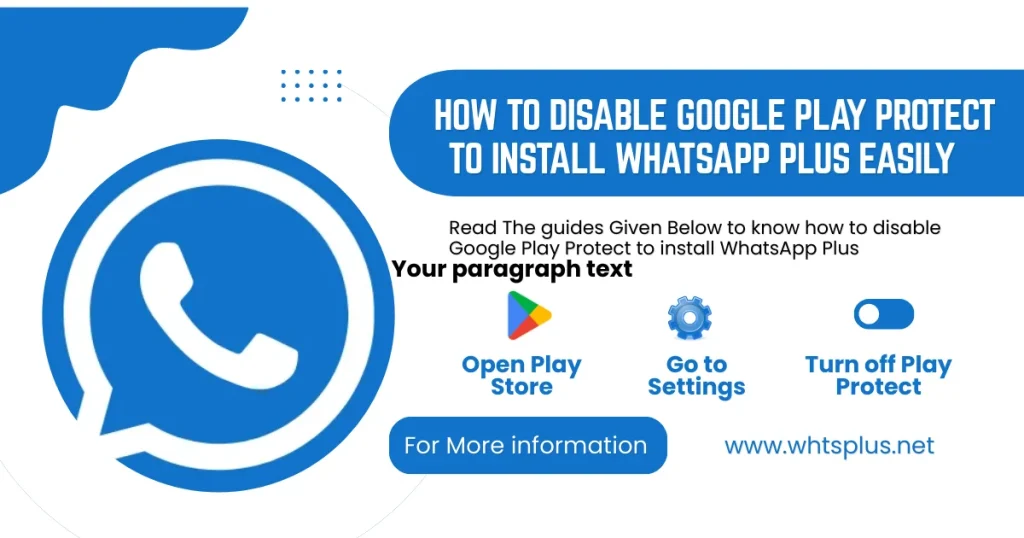
- Step 1: Open Google Play Store Tap the Google Play Store app on your phone’s home screen. Look for the colorful icon with a triangle shape. If you can’t find it, search for “Play Store” in your app drawer.
- Step 2: Go to Settings Once inside the Play Store, look for the menu icon. It’s usually three horizontal lines in the top right corner. Tap it to open the menu.
- Step 3: Find Play Protect Look through the menu options. Find “Play Protect” or “Play Store settings” and tap it. This opens the security settings area.
- Step 4: Open Play Protect Settings Look for an option that says “Play Protect” with a shield icon. Tap it to enter the Play Protect settings page.
- Step 5: Disable the Toggle You’ll see a toggle switch next to “Scan apps with Play Protect” or similar text. The toggle is currently turned on, shown in blue or green. Tap the toggle to turn it off. It will change color to gray, showing it’s now disabled.
- Step 6: Confirm the Action Your phone may ask if you’re sure you want to turn off this protection. Tap “Turn Off” or “Yes” to confirm. Google Play Protect is now disabled on your device.
Installing WhatsApp Plus After Disabling Google Play
Once Google Play Protect is off, you can install WhatsApp Plus.
- First, download WhatsApp Plus from Whtsplus.net using your phone’s web browser. Go to the website and find the download link. Tap it and wait for the file to download. Your phone will save it to the Downloads folder.
- Next, open your file manager app. Navigate to the Downloads folder and find the WhatsApp Plus APK file. Tap it to start the installation. Your phone will now allow the installation because Google Play Protect is disabled.
- Follow the on-screen steps to complete the installation. When asked for permissions, accept them. Once installation finishes, WhatsApp Plus will appear on your home screen.
Important Safety Warnings
Disabling Google Play Protect removes important protection from your device. Your phone becomes more vulnerable to harmful apps and malware. Never disable it permanently. Only keep it off for the time needed to install WhatsApp Plus, then turn it back on immediately.
Download apps only from trusted sources. Whtsplus.net is a reliable source for WhatsApp Plus. Avoid downloading from random websites that you don’t recognize. Fake versions of WhatsApp Plus can damage your phone or steal your information.
Don’t install other apps while Google Play Protect is disabled. Only use this window to install WhatsApp Plus. Once installation completes, re-enable Google Play Protect right away.
How to Re-enable Google Play Protect
After installing WhatsApp Plus, turn Google Play Protect back on immediately. This restores your device’s security protection.
Go back to the Google Play Store app. Open the menu and find Play Protect settings again. Find the toggle that you disabled. Tap it to turn it back on. The toggle will change color to blue or green, showing it’s active again.
It only takes a few seconds to re-enable this important protection. Don’t forget this step. Your device needs this security feature active at all times except when installing WhatsApp Plus.
Alternative Methods to Consider
If disabling Google Play Protect makes you uncomfortable, there are other options. You can allow unknown sources instead of disabling Google Play Protect entirely. Go to your device’s Settings, find Security, and look for “Unknown Sources” or “Install from Unknown Sources.” Enable this option instead. This allows app installations from sources outside the Play Store while keeping most Google Play Protect features active.
Another option is to use an Android emulator on your computer and install WhatsApp Plus there instead. This keeps your phone’s security intact.
Understanding the Risks
Using WhatsApp Plus carries risks beyond just disabling Google Play Protect. WhatsApp may detect the modified app and ban your account. Your account could be temporarily or permanently blocked. Understand this risk before proceeding.
Modified apps sometimes have bugs or problems that official apps don’t have. WhatsApp Plus may not work smoothly all the time. Updates to official WhatsApp may break WhatsApp Plus functionality.
Final Thoughts
Disabling Google Play Protect is necessary to install WhatsApp Plus on Android devices. The process is simple and takes only a few minutes. Download WhatsApp Plus from Whtsplus.net, disable Google Play Protect, install the app, then immediately re-enable the protection. Never leave Google Play Protect disabled permanently. Your device needs this security feature for protection against harmful apps. Stay smart about when and why you disable protections, and always keep your device secure.